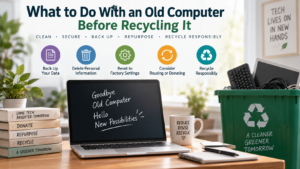
An old computer may no longer be useful to you, but the information stored inside it can remain valuable—and sensitive. Tax documents, saved passwords, family photos, browser history, business files, financial records, and account information can remain on a hard drive or solid-state drive after you stop using the computer.
Before recycling an old computer, back up anything you want to keep, disconnect your accounts, remove accessories or removable storage, and properly erase the data-bearing drive. Simply deleting files or emptying the Recycle Bin is not the same as sanitizing the storage device.
Here is a practical checklist to follow before your computer leaves your possession.
1. Back Up the Files You Want to Keep
Start by deciding whether there is anything on the computer you may need later.
Check common locations such as:
Documents, Desktop, Downloads, Pictures, and Videos
locally stored email or archives
accounting and tax files
browser bookmarks
password-manager backups
work or school documents
application-specific files
You can transfer important data to another computer, an external storage device, or a trusted cloud-storage service.
Open several files from the backup before proceeding. A backup is not particularly useful if you discover after recycling the computer that important folders were never copied.
2. Sign Out and Disconnect Your Accounts
Computers can remain associated with online services even after you stop actively using them.
Review the device for Microsoft, Apple, Adobe, cloud-storage, password-manager, email, business-software, and other important accounts. Where appropriate, sign out, deauthorize the computer, or remove it from the account’s trusted-device list.
This is particularly important if you plan to donate or resell the computer rather than send it directly for material recovery.
Apple, for example, provides specific instructions for preparing a Mac for sale, trade-in, donation, or recycling, including account-related steps and erasing the Mac.
3. Remove Anything That Should Not Go With the Computer
Before handing over the machine, check its ports, slots, drive bays, and accessories.
Remove items such as:
USB flash drives
external hard drives
SD or microSD cards
CDs and DVDs
security keys and hardware authentication tokens
wireless USB receivers you intend to keep
For desktop computers, also determine whether any additional internal drives were installed over the years. A computer can contain more than one HDD or SSD.
4. Erase the Computer’s Data Properly
This is the most important step.
Deleting files normally removes references to the files from the operating system, but that should not be treated as equivalent to securely sanitizing the underlying storage media.
For a personal Windows PC, Microsoft recommends backing up the information you need and using Reset this PC before recycling, selling, or gifting the device. Windows offers a “Remove everything” option, and its “Clean data” setting is intended to make recovery of removed files more difficult.
There is an important distinction, however: Microsoft explicitly notes that its consumer data-erasure functionality does not meet government and industry data-erasure standards.
On supported Macs, Apple recommends Erase All Content and Settings to reset the computer to factory settings. Older or unsupported Macs may require erasing the Mac through macOS Recovery and reinstalling macOS.
Follow the current instructions from your computer or operating-system manufacturer rather than relying on an old tutorial.
5. Businesses Need a More Formal Data-Sanitization Process
A home computer containing ordinary personal information and a business laptop containing customer, employee, financial, healthcare, or proprietary data do not necessarily require the same disposal process.
Organizations should establish sanitization procedures based on the sensitivity of the information and the storage technology involved.
The current NIST Special Publication 800-88 Revision 2, Guidelines for Media Sanitization, published in September 2025, describes media sanitization as making access to target data infeasible for a specified level of effort. NIST addresses sanitization approaches including Clear, Purge, and Destroy and emphasizes selecting appropriate controls based on information sensitivity and organizational requirements.
For companies retiring multiple computers, data security should therefore be part of the IT asset disposition process—not an afterthought.
Organizations may also want documentation showing what happened to data-bearing assets, particularly when internal security policies or regulatory obligations apply.
6. What If the Computer Does Not Turn On?
A dead computer can still contain a perfectly readable storage drive.
If the machine will not boot and you cannot perform an appropriate erase, do not assume your information disappeared with the failed computer.
Depending on the computer and your technical ability, the HDD or SSD may be removable. For sensitive information, consider working with an electronics recycling or IT asset disposition provider that can explain its data-sanitization or physical-destruction process.
Ask what happens to the drive, how sanitization is performed, whether the process is verified, and what documentation is available.
7. Choose an Appropriate Recycling Option
Once your information has been addressed, determine where the computer should go.
For Texas households, the Texas Commission on Environmental Quality (TCEQ) administers the Texas Recycles Computers Program. Manufacturers selling covered computer equipment in Texas are required to provide qualifying consumers with a free and convenient recycling program for their brands.
TCEQ also makes an important point: consumers are responsible for confidential information left on computer equipment submitted for recycling.
Commercial, government, and nonprofit organizations should not assume that residential manufacturer programs apply to their equipment. TCEQ recommends that these organizations investigate appropriate options through manufacturers, retailers, charities, and other recycling resources.
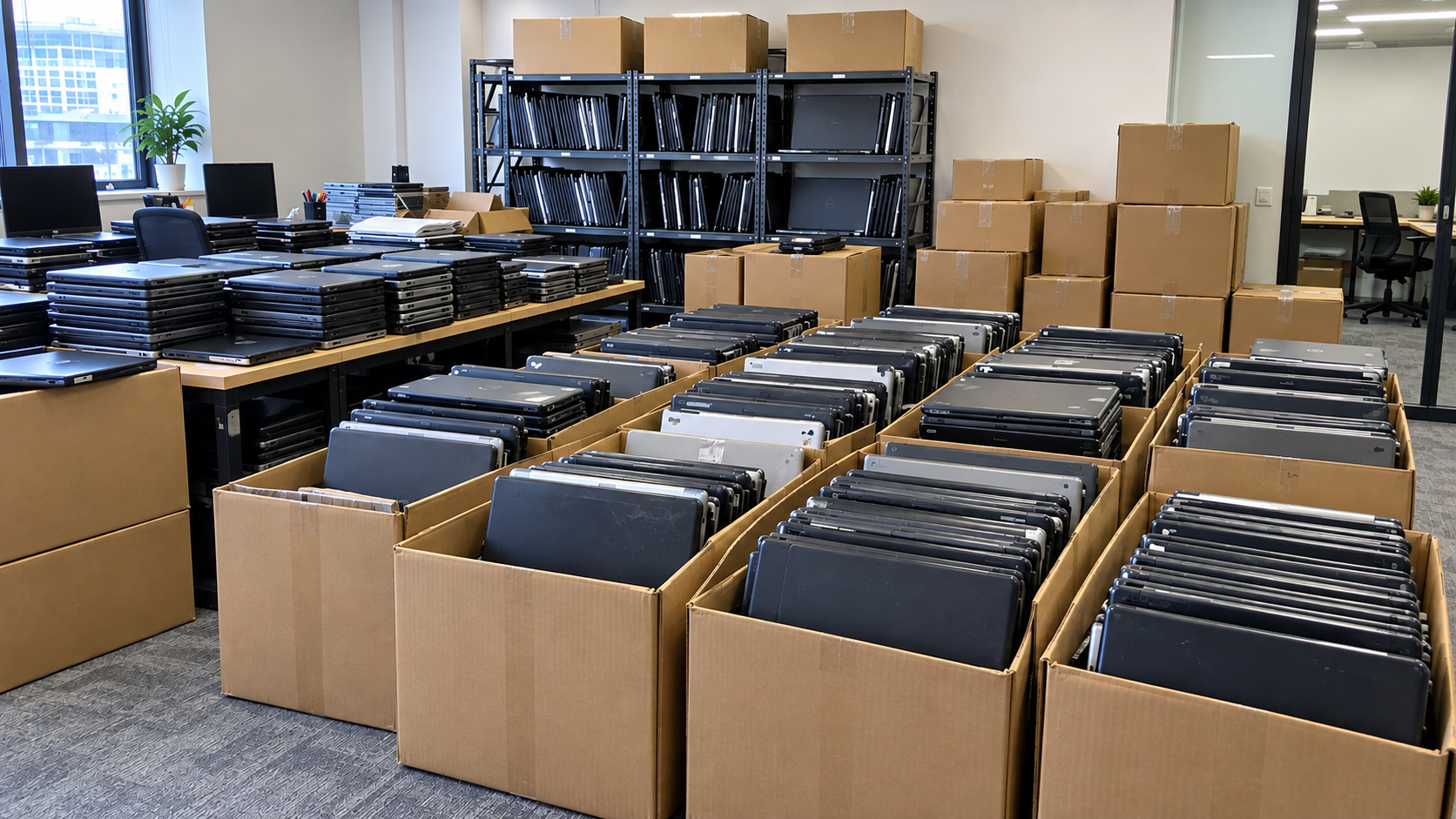
For businesses with larger quantities of desktops, laptops, servers, storage devices, and related IT equipment, a commercial electronics recycling or ITAD solutionmay be more appropriate.
Quick Checklist Before Recycling a Computer
Before the computer leaves your control:
Back up files you want to keep.
Verify that your backup works.
Sign out of important accounts.
Deauthorize or remove the computer from relevant services.
Remove USB drives, memory cards, discs, and security keys.
Identify every HDD or SSD in the computer.
Properly erase or sanitize data-bearing storage.
Use stronger sanitization procedures when sensitive business data is involved.
Select an appropriate recycling or reuse option.
For business equipment, ask about data handling, chain of custody, and available documentation.
Taking these steps protects your information while making it easier to give old equipment a responsible next destination.
If you have computers or other IT equipment to retire in the Houston area, LoneStar e-Waste can help connect you with an appropriate electronics recycling solution based on the equipment, quantity, location, and data-security requirements of your project.
FAQ
Is deleting all my files enough before recycling a computer?
No. Ordinary deletion should not be treated as secure data sanitization. Use appropriate manufacturer-supported erasure procedures or a suitable sanitization process for the storage device and sensitivity of the information.
Should I remove the hard drive before recycling my computer?
Not necessarily. If the drive has been appropriately sanitized, the computer may be recycled with it installed. If the computer cannot be erased or contains particularly sensitive information, removing the drive for appropriate sanitization or destruction may be worth considering.
Can I recycle a computer that no longer works?
Yes. A nonworking computer may still contain recyclable or reusable materials. Remember that a failed computer can still contain a functioning HDD or SSD with recoverable information.